7 steps to smart home security you set up yourself
A step by step plan to set up smart home security yourself that covers the entry sensors, cameras and network settings keeping your house safe.
Filed by Alex Whitcomb 7 min
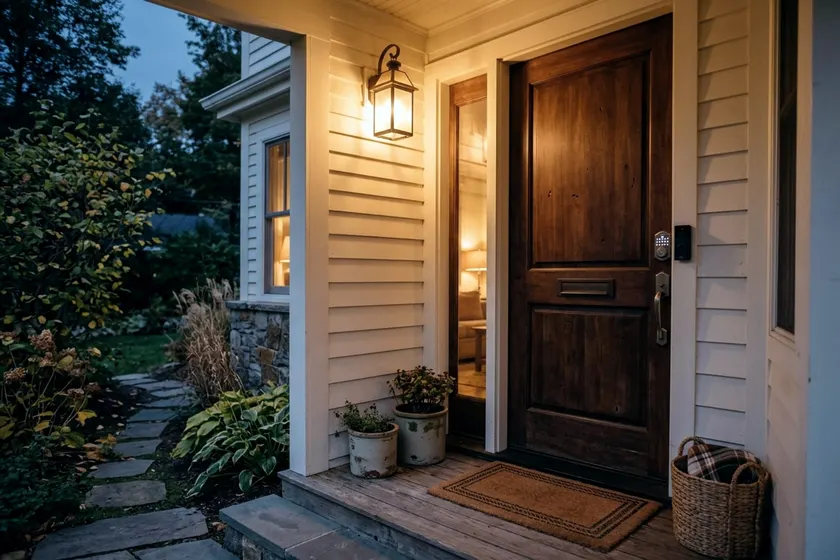
Setting up smart home security requires placing sensors, cameras and locks at your entry points, then securing the wireless network they run on. A self-installed system can help protect your home and outbuildings and may cost less than professional monitoring. The project starts with a site map and finishes with a locked down router.
1. Map the doors, windows and spots you want covered
Walk around the outside of your house with a notepad and a tape measure. Count every ground floor door and window that opens. These are your primary entry points.
Include the side door to the garage and the windows on any backyard structures. If you turn a shed into an office you can use all year, that space needs its own coverage. Look for choke points along the walkways where one camera can capture anyone approaching the front or back doors.
Draw a rough floor plan. Mark the location of your internet router in the center of the house. Note the distance from the router to the furthest planned device. Wi-Fi signals weaken through exterior walls, brick and solid core doors.
A camera on a detached garage across the yard might drop its connection, so write down the rough distances. They show whether you need a mesh router setup or an outdoor access point before you buy the hardware.
2. Start with entry sensors and a hub or app
Contact sensors are the foundation of any alarm setup. They come in two pieces. You mount the larger piece on the door frame and the smaller magnetic piece on the door itself.
The system registers an open door when the two pieces move apart. Stick these sensors on every ground floor window and every exterior door using the provided adhesive strips. They run on small batteries that you will need to replace.
Interior motion sensors back up the perimeter. Place them high in the corners of main hallways or living rooms, following the mounting instructions that come with the sensor.
The wide field of view catches anyone walking through the house. If you have pets, pick a pet-friendly sensor and follow its instructions for mounting height.
Your sensors and cameras must talk to your phone. Some systems connect directly to your home network via an app. Others require a central base station plugged into your router.
You have to decide if you need a smart home hub before you purchase individual pieces. Some hubs talk to your sensors over their own radio link, which can lessen the load on your Wi-Fi network. Keep the hub near a power outlet and away from thick walls.
3. Place cameras without filming your neighbors
A doorbell camera is the easiest way to monitor the front porch. It replaces your existing doorbell button and uses the same low voltage wiring for power. Always flip the breaker at the electrical panel before touching bare wires.
For the driveway and backyard, use battery powered or hardwired exterior cameras. Mount them high enough to stay out of easy reach while keeping a clear view of faces. Run a speed test on your phone while standing at the planned mounting spot to confirm the Wi-Fi reaches that far.
Point your cameras at your own property, and check your state and local rules on recording. Avoid angling a lens so it looks directly into a neighbor's yard or through their windows. Angle the outdoor cameras downward to focus on your walkways, porch and driveway.
If you install indoor cameras to watch the front hall or a back door, point them away from private living spaces. Many indoor models have a physical privacy shutter you can close when you are home.
4. Choose smart locks with a backup key
A smart deadbolt lets you lock the front door from your phone or give a temporary entry code to a house cleaner. Replace your existing deadbolts with models that still have a traditional keyhole. Motors fail, batteries die and internet outages happen. A physical backup key gives you another way into your house.
Most smart locks fit into a standard door prep hole. Check your existing deadbolt measurements before buying. Many models install with a screwdriver and the maker's instructions.
Tighten the screws by hand. A power drill can strip the threads or warp the lock housing, which can make the lock jam. Ensure the deadbolt slides smoothly into the door frame strike plate without rubbing.
5. Lock down your router first
Your smart lock and cameras are only as safe as the network they connect to.
The FTC recommends changing your router's default administrative username, password and network name to something unique. Do this before you plug in a single camera. You can access the router settings by typing the router's IP address into your web browser, which is often listed on a sticker on the router.
A default network name can reveal which router you use, so the FTC advises changing it. The administrative password controls who can change the router settings, which is entirely separate from the Wi-Fi password you type to join the network. Make the administrative password long and complex.
6. Secure every device and account
Security cameras and hubs arrive with factory settings that are easy for outsiders to guess. The FTC recommends changing the default username and password on each connected device and using a password you do not reuse elsewhere. A unique password for your doorbell account helps keep a breach on another website from compromising your front door. Store these passwords in a password manager or another secure place.
The FTC recommends turning on two factor authentication for connected devices where it is offered. This step requires a code sent to your phone or an authenticator app before anyone can log in.
The FTC advises updating connected devices regularly and disabling or disconnecting features and devices you do not use. Turn on automatic firmware updates in your camera and hub apps if they offer them, and check for updates by hand if not. If an old smart plug or indoor camera breaks and you stop using it, delete it from the app and unplug it from the wall.
7. Review alerts and access logs
Test the system to make sure the notifications work. Open every door and window to verify the chimes sound and the alerts reach your phone. Walk past each camera to check the motion detection zones.
You want a notification when a person walks up the driveway, not when a car drives past on the street or a tree branch blows in the wind. Adjust the sensitivity sliders in the app until the false alarms stop.
The FTC suggests checking IP camera access logs regularly for unauthorized access.
Most camera apps have an account settings page that lists every phone, tablet or computer that logged in. Check this list regularly. If you see a device you do not recognize, log it out and change your password immediately.
How to choose a video storage method
Your cameras need a place to save the clips they record. You have two main options for video storage. Cloud storage sends the video over your Wi-Fi to a server run by the camera manufacturer. Local storage keeps the video inside the camera on a small memory card or sends it to a hard drive plugged into your router.
Cloud storage often requires a monthly fee. It protects your footage if a thief steals the physical camera off the wall.
Local storage usually has no monthly fees. The video stays in your control, which can offer more privacy for indoor cameras. Many people use cloud storage for the doorbell and local storage for their backyard cameras.
Plan for power and internet outages
A smart home security setup relies on electricity and an internet connection. When a storm knocks out the power grid, your Wi-Fi router shuts off. Battery powered cameras may still record to a local memory card, but they may not be able to send a notification to your phone. Hardwired cameras may turn off unless they have a backup.
You can keep the system running by plugging your internet router and your security hub into an uninterruptible power supply. This small battery backup unit can keep your internet running for a while during a blackout, depending on its capacity. For longer outages, cellular backup is one way to keep the alerts coming. Some alarm hubs include a cellular chip that connects to mobile towers when the home internet goes down, though this usually requires a paid monitoring plan.